Gemma 4 26B VRAM Requirements Explained: What GPU Do You Actually Need?
Gemma 4 26B VRAM Requirements Explained: What GPU Do You Actually Need?
Before you download Gemma 4 26B and hit run, there's one question you need to answer first: does your graphics card have enough memory to handle it?
Get this right and the model runs fast and smoothly. Get it wrong and you'll either get a crash error the moment it loads, or it'll run so slowly that it takes three minutes to generate a single sentence. This guide gives you the exact numbers so you can make the right choice for your hardware.
1. The VRAM Problem with Large AI Models
Gemma 4 26B was released by Google DeepMind in April 2026 under the Apache 2.0 license — free for personal and commercial use. It has a smart design called Mixture of Experts: the full model stores 26 billion parameters on your hard drive, but for every single word it writes, it only activates 3.8 billion of them. Think of it like a library with 26,000 books — the model only pulls 3,800 books off the shelf for each answer, so it can respond quickly without reading everything at once.
But here's the thing: to run fast, the entire library still needs to be in a very specific kind of memory.
VRAM stands for Video Random Access Memory. It's the ultra-fast memory built directly onto your graphics card (GPU) — separate from your normal computer RAM. Your GPU uses this dedicated memory to do calculations at extremely high speed.
For Gemma 4 26B to respond quickly, the full model file needs to fit entirely inside your GPU's VRAM. Think of VRAM like the surface of a work desk:
- If all your files fit on the desk — fast, smooth work
- If files spill off the desk onto the floor (your regular RAM) — slow, frustrating work
- If there's no room at all — everything crashes
This is why knowing your VRAM number before downloading matters so much.
2. Breaking Down the VRAM Math
Two things eat up your VRAM when running Gemma 4 26B. Understanding both helps you plan correctly.
The Model File Itself
When you download Gemma 4 26B, you're downloading a compressed version of the model. The compression level determines how large the file is and how much VRAM it needs.
Compression is a lot like saving a photo. A fully uncompressed photo is massive but crystal clear. A compressed JPEG is smaller and still looks great for most uses. An extremely compressed thumbnail is tiny but blurry. AI models work the same way:
- Lightly compressed (
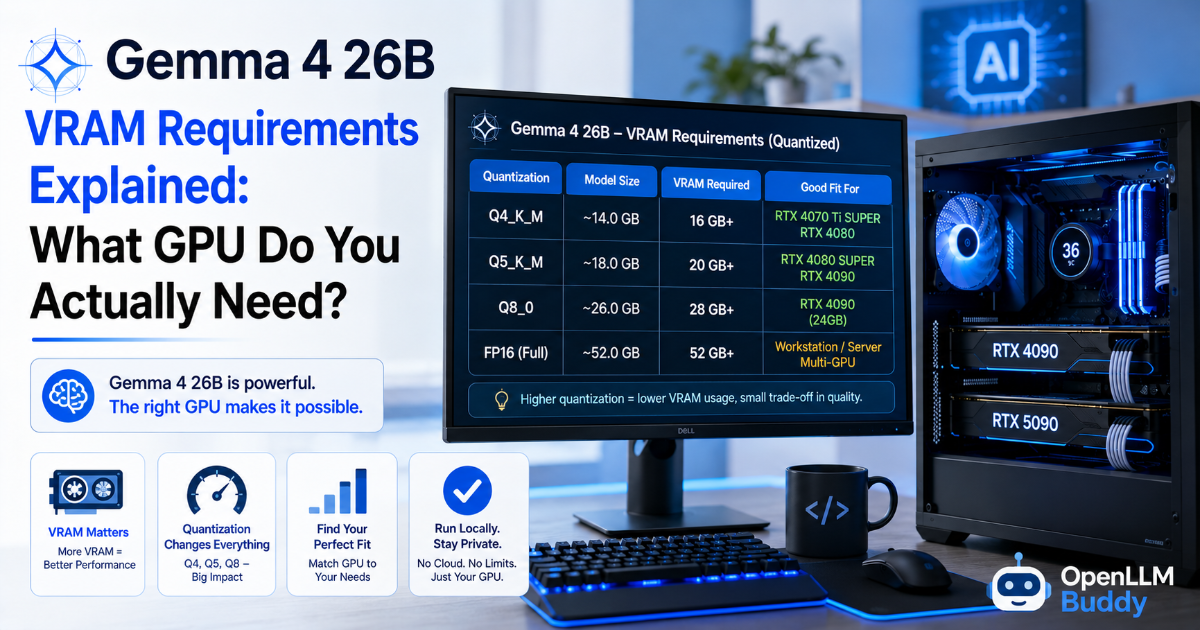
Q8_0) — very close to original quality, needs about 28 GB - Standard compressed (
Q4_K_M) — excellent quality, needs about 16–18 GB - Heavy compressed (
IQ4_XS) — good quality, needs about 14–15 GB - Uncompressed (
BF16) — original quality, needs about 52+ GB
For most developers, the Q4_K_M version is the sweet spot — it fits on a 24 GB GPU and the output quality is very close to the uncompressed original.
The Conversation Memory (The Scratchpad)
The second thing that uses VRAM is called the KV Cache. This is the temporary scratchpad memory the AI uses to remember everything in your current conversation — every word you've typed and every word it's written back.
Gemma 4 26B can read up to 256,000 words at once (called a 256K context window). That's an enormous amount of text. The more of that window you fill up, the more scratchpad memory the model needs.
A short 2,000-word conversation needs maybe 1–2 GB of extra VRAM. A long 32,000-word conversation with a full codebase pasted in needs 6–8 GB extra. And if you tried to fill the full 256K window, you'd need far more VRAM than any single consumer GPU can provide.
The key rule: Add your model file size + your expected conversation scratchpad size = total VRAM needed. Always leave at least 2 GB free as a safety buffer.
3. The GPU Compatibility Blueprint
Here's your quick reference table. Find your GPU's VRAM, pick the right file version, and stay within the safe context limit.
| Your GPU VRAM | Best Gemma 4 26B Version | Safe Context Limit | Real-World GPU Examples |
|---|---|---|---|
| 16 GB VRAM | UD-IQ4_XS (Highly Compressed) | Short chats (2K–4K tokens) | RTX 4070 Ti Super, RTX 4080 |
| 24 GB VRAM | UD-Q4_K_M (Standard Default) | Medium workloads (8K–16K tokens) | RTX 3090, RTX 4090 |
| 32 GB+ VRAM | UD-Q5_K_M or Q8_0 (High Quality) | Long context (32K+ tokens) | Dual GPUs, Mac Studio M3 Max |
| 80 GB+ VRAM | BF16 (Uncompressed Original) | Full context (up to 256K tokens) | Enterprise cloud (A100, H100) |
16 GB GPU warning: The
IQ4_XSversion will load, but you have very little headroom for conversation memory. As soon as your chat gets longer than a few exchanges, you'll hit the VRAM ceiling. Keep prompts short and avoid pasting in large files.
Pulling your chosen version with Ollama:
# Standard version — best for RTX 4090 (24 GB)
ollama run gemma4:26b

# Lighter version — for 16 GB GPUs
ollama run gemma4:26b-iq4-xs

# Check how much VRAM Ollama is using
ollama ps
Checking your GPU's VRAM right now:
# Windows — in PowerShell or Terminal
nvidia-smi

# Linux
nvidia-smi --query-gpu=name,memory.total,memory.free --format=csv

# Mac — Activity Monitor → Window → GPU History
# Or in terminal:
system_profiler SPDisplaysDataType | grep VRAM
4. The Hidden Wall — Long Chats and Multi-Step Agents
Here's where most local setups fall apart. And it usually happens at the worst possible moment — when you're deep in a complex task.
Your model loads fine. It responds quickly on your first few messages. Then you start doing something more serious: pasting in a full codebase, running a multi-step agent loop, or having a long debugging session. Gradually, more and more of your VRAM fills up with conversation memory. And then — without warning — two things can happen.
The Sudden OOM Crash
OOM stands for "Out of Memory." When your VRAM fills completely, the GPU has nowhere to put new information and the whole process shuts down instantly. Your terminal goes blank. The model process closes. Your entire conversation history — every exchange you've had in that session — is gone.
In vLLM, this shows up as:
CUDA out of memory. Tried to allocate X GiB
In Ollama, the process simply exits with no warning.
There's no graceful recovery. You start over from scratch.
The Slowdown Trap
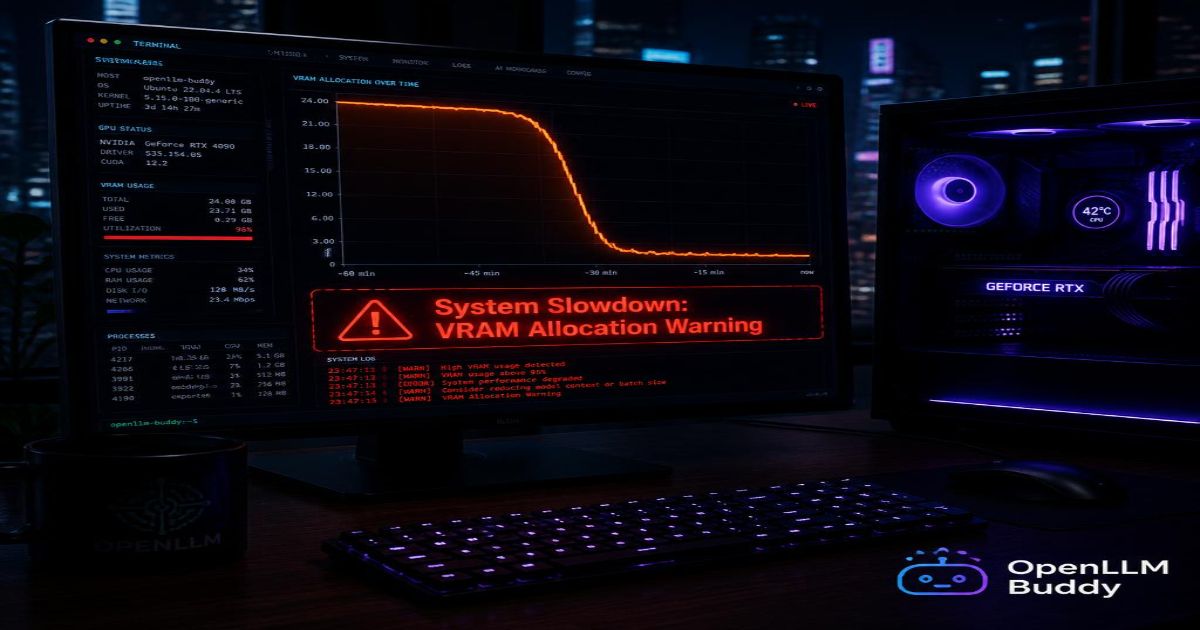
Sometimes instead of crashing, the system tries to be helpful. It spills the overflow from your fast VRAM into your regular computer RAM to keep running. Your regular RAM is much slower than VRAM — like the difference between typing on a keyboard versus carving letters into stone.
What used to take 1–2 seconds per response now takes 3–5 minutes. Generating a single line of code feels like waiting for a page to load on dial-up internet. Your workflow completely dies.
Agent loop warning: Autonomous coding agents are the worst offenders for VRAM overflow. An agent that makes 10 API calls in a loop — each one adding tool call results to the context — can quadruple its memory usage between step 1 and step 10. A setup that runs fine on a simple question will crash halfway through a complex automated task.
Quick fix — limit your context window in Ollama:
cat > Modelfile << 'EOF'
FROM gemma4:26b
PARAMETER num_ctx 8192
EOF

ollama create gemma4-safe -f Modelfile
ollama run gemma4-safe
Setting num_ctx 8192 caps how much scratchpad memory the model uses, keeping you safely inside your VRAM ceiling on a 24 GB card.
5. Forget the Hardware Limits — Use OpenLLM Buddy
Buying a second GPU, upgrading to an RTX 4090, or renting a bare A100 instance are all expensive and complicated solutions to a problem that has a much simpler answer.
OpenLLM Buddy runs Gemma 4 26B on dedicated NVIDIA RTX 4090 and RTX 5090 cloud hardware — pre-configured, production-ready, and accessible via a clean OpenAI-compatible API link. No downloads. No VRAM math. No compression trade-offs. No crashes at 32,000 tokens.
You get the full model running on elite hardware, and the KV cache is managed at the platform level — so your agent can run 100 steps deep without hitting a memory wall.
The pricing is completely different from standard API providers: token consumption is 100% free. You pay only for the flat GPU compute time. Whether your conversation is 500 tokens or 50,000 tokens — the rate stays the same.
| Plan | Gemma 4 26B (RTX 4090) | Qwen 3.6 27B (RTX 5090) |
|---|---|---|
| 11 Hours | $10 | $14 |
| 24 Hours | $22 | $31 |
| 1 Week | $150 | $212 |
| 1 Month | $599 | $845 |
Both plans auto-terminate when your quota ends — no idle overnight billing.
Migrating from your local Ollama setup is one line:
import openai

# Move your codebase to massive cloud VRAM with zero token bills
client = openai.OpenAI(
    base_url="https://api.openllmbuddy.cloud/v1",
    api_key="YOUR_OPENLLM_BUDDY_KEY"
)

response = client.chat.completions.create(
    model="gemma-4-26b-a4b",
    messages=[{"role": "user", "content": "Your prompt here"}],
    temperature=0.1
)
Same code. Same model. No VRAM ceiling. No crash at step 47 of your agent loop.
The Quick Decision Guide
- Have a 24 GB GPU and doing normal dev work? → Run
gemma4:26blocally withnum_ctx 8192 - Have a 16 GB GPU? → Use
gemma4:26b-iq4-xsand keep conversations short - Running agents or long-context tasks? → Use OpenLLM Buddy — your local GPU will hit the wall
- Need to share the model with a team? → Use OpenLLM Buddy — local setups don't scale to multiple users
- Need full 256K context? → Only possible on 80 GB+ enterprise GPUs or via cloud — OpenLLM Buddy handles this cleanly
Your GPU is a great starting point for development and testing. When the task gets serious, the smart move is to let dedicated cloud hardware handle the heavy lifting.